
Free File Tools for Media, Metadata, Conversion, and Everyday Fixes
Handle one-off file jobs like conversion, compression, metadata checks, Base64, favicons, archives, and small media tasks.

All General Utilities Tools
8 ToolsVideo to GIF
Use Video to GIF when you need to turn Video files into Gif. Add the Video file, choose the option that matters, and review the Gif file.
GIF to Video
Use GIF to Video when you need to turn Gif files into Video. Add the Gif file, choose the option that matters, and review the Video file.
Audio Converter
Audio Converter helps when the next step is simple: change the file into a format that is easier to open or share. It is built for quick fixes, checks, and downloads.
Merge Audio / Video
Merge Audio / Video helps when the next step is simple: combine separate files into one ordered result. It is built for quick fixes, checks, and downloads.
Audio Compressor
Open Audio Compressor when your file needs one clear change. The tool keeps the process short and the smaller file easy to inspect.
Video Compressor
Video Compressor helps you reduce file size. It keeps the page focused on that one job, so you can check the smaller file without opening a larger app.
File to Base64
Use File to Base64 when you need to turn File files into Base64. Add the File file, choose the option that matters, and review the Base64 file.
Base64 to File
Use Base64 to File when you need to turn Base64 files into File. Add the Base64 file, choose the option that matters, and review the File file.
Choose by the task, not only the file
Small tools are good for quick fixes. The safer habit is simple: use the tool for one job, then check the result.
Convert
Another app needs a different file type or format.
The first output already lost quality.
Clean
Copied data has extra spaces, odd symbols, or broken structure.
Important records cannot be checked field by field after.
Generate
You need a quick code, placeholder, label, or small asset.
The output will be used as official data without verification.
Privacy note: Use sample data when possible, keep originals, and avoid entering private or client information unless the task truly requires it.
Which general file tool should you use?
Start with where the file needs to go.
App rejects the file?
Convert it to a common format the app accepts.
File too large?
Compress a copy and check quality before replacing the original.
Need website icons?
Create favicons from a clean square source image.
Need hidden details?
Use a metadata viewer before sharing or converting.
General tools are for the file jobs that do not fit neatly anywhere else
Some tasks only happen once in a while. A website rejects a format, an app needs a favicon, a file needs to be checked, or a media file needs a smaller copy.
Check the file before converting it
Extensions can be misleading. If a file behaves oddly, check its details before converting or uploading it somewhere else.
Choose the output for the app that needs it
Conversion is most useful when another website, app, or device cannot use the original. Pick the output format based on where the file must work.
Keep originals for unusual formats
For older, rare, or client files, save the original before converting. A converted copy may lose layers, file details, or quality.
Base64 can make files harder to read
Base64 is useful for embedding or moving data, but it makes files larger and is not a privacy tool.
Test large media with a small sample first
Before compressing or converting a big video or audio file, test a short sample. It saves time if the settings are wrong.
Example: website rejects a file
If an upload form rejects a file, check the accepted format, size limit, and extension. The fix may be conversion, compression, or renaming after checking the file type.
Conversion can remove details
Some formats store layers, transparency, metadata, or animation. Converting to a simpler format may remove those parts.
Base64 makes files larger
Base64 is helpful for embedding or moving data in text form, but it usually increases size. It is not a compression method.
Favicons need a clean source
A favicon starts tiny, so use a simple square image. Detailed logos often become unreadable at 16x16 pixels.
Test before batch processing
For unusual files or media, process one sample first. If the settings are wrong, you avoid wasting time on a full batch.
Common file tasks
Check hidden details inside a file.
Make a video smaller before uploading.
Convert audio to a more common format.
Merge simple media files.
Check a file when the extension looks wrong.
General tool Questions
Helpful notes about file formats, media quality, file details, browser limits, and safe downloads.
Why is this category called general utilities?
Will video compression reduce quality?
Should I keep the original media file?
Can browser tools process very large media files?
Are downloader tools allowed for every link?
Why did a converted file not open in another app?
Handle One-Off File Tasks
- Step 1
Inspect the file or link
Check the source, extension, size, and intended destination before choosing a tool.
- Step 2
Choose app support or size
Decide whether the priority is making the file work somewhere else or making it smaller.
- Step 3
Run a short test
For media, test a small file or preview the result before processing a large batch.
- Step 4
Keep the original
Save the untouched file when quality, licensing, or future editing matters.
Explore Tools Visually

Video to GIF
Use Video to GIF when you need to turn Video files into Gif. Add the Video file, choose the option that matters, and review the Gif file.

GIF to Video
Use GIF to Video when you need to turn Gif files into Video. Add the Gif file, choose the option that matters, and review the Video file.
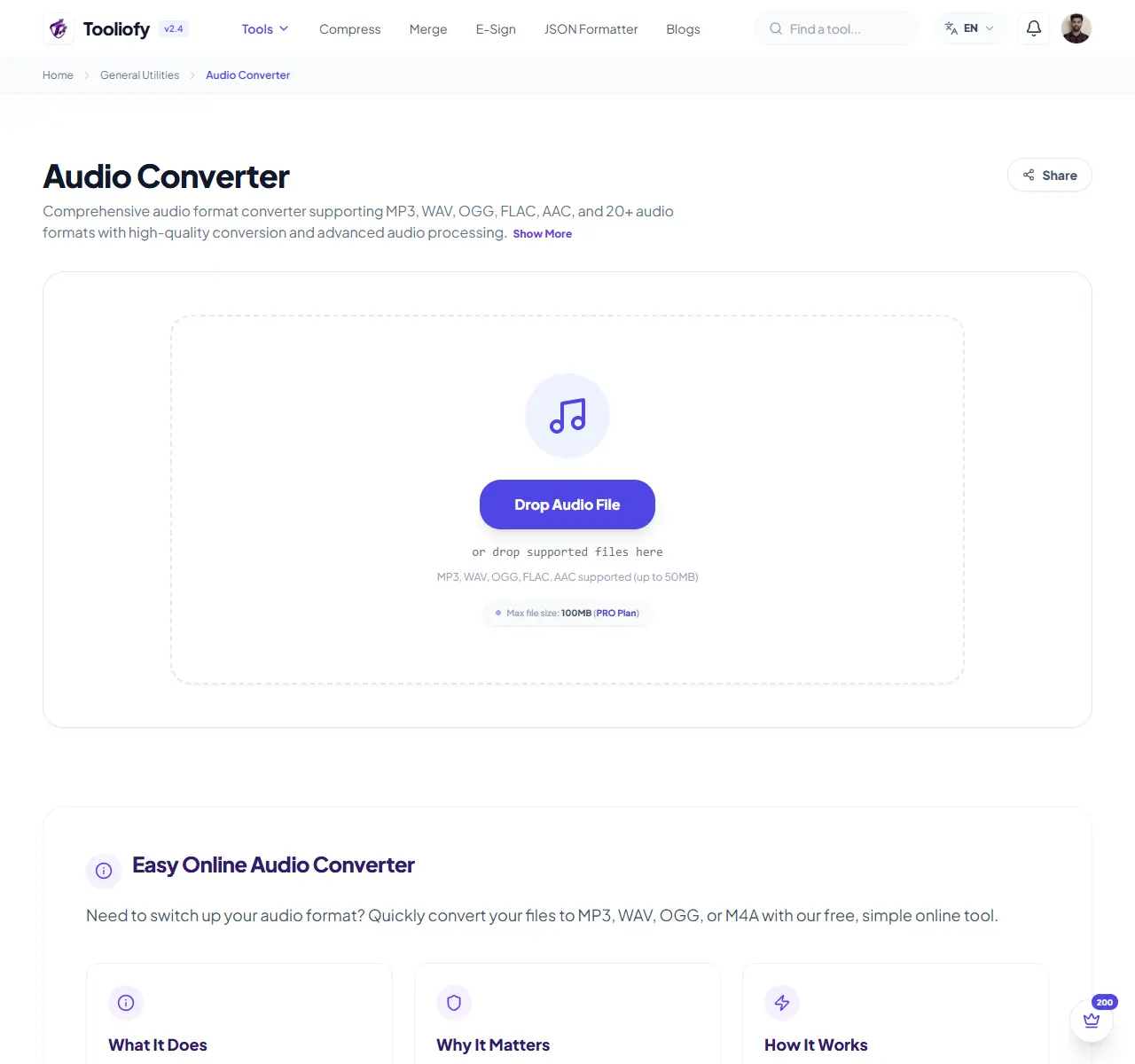
Audio Converter
Audio Converter helps when the next step is simple: change the file into a format that is easier to open or share. It is built for quick fixes, checks, and downloads.

Merge Audio / Video
Merge Audio / Video helps when the next step is simple: combine separate files into one ordered result. It is built for quick fixes, checks, and downloads.
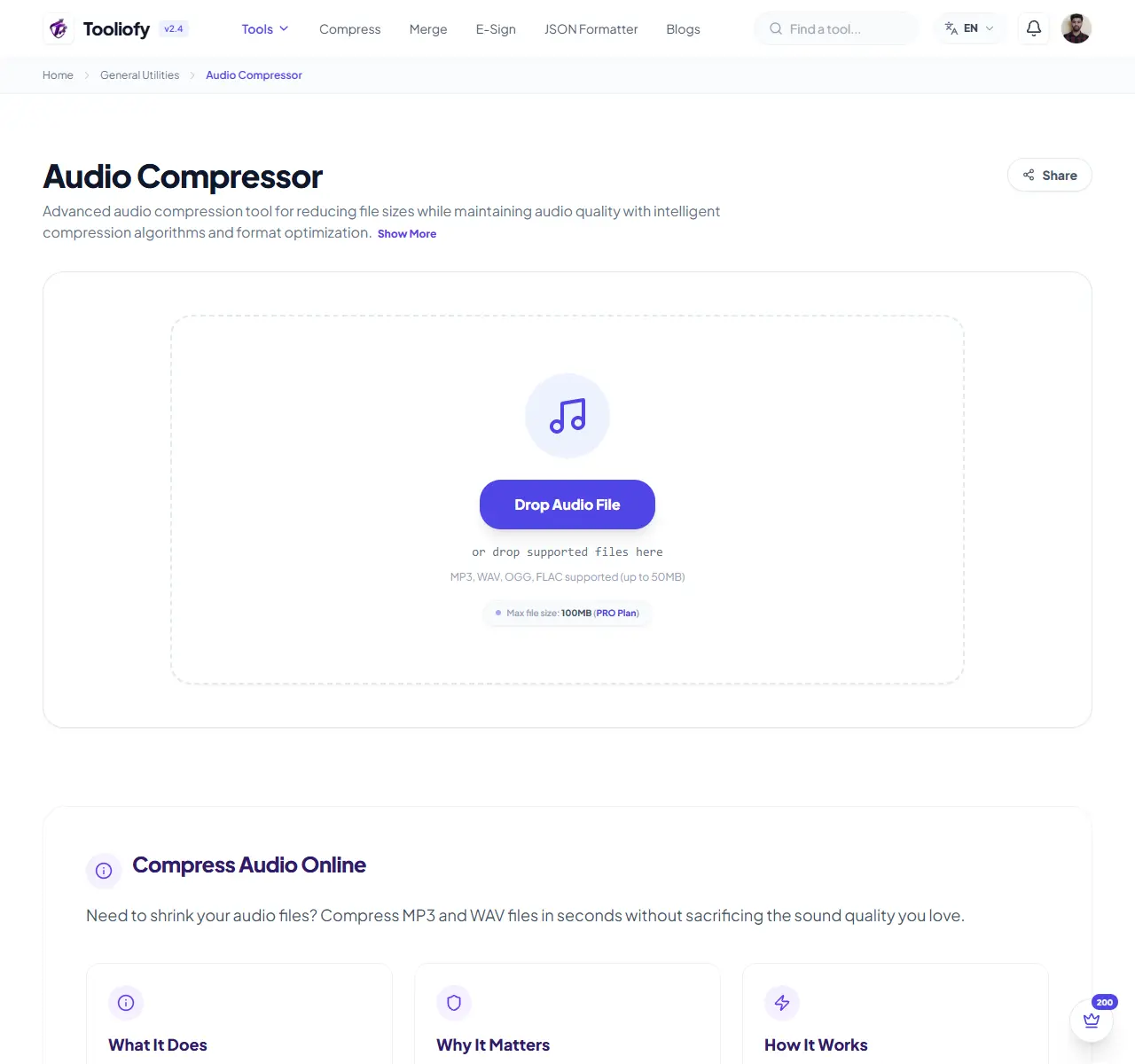
Audio Compressor
Open Audio Compressor when your file needs one clear change. The tool keeps the process short and the smaller file easy to inspect.
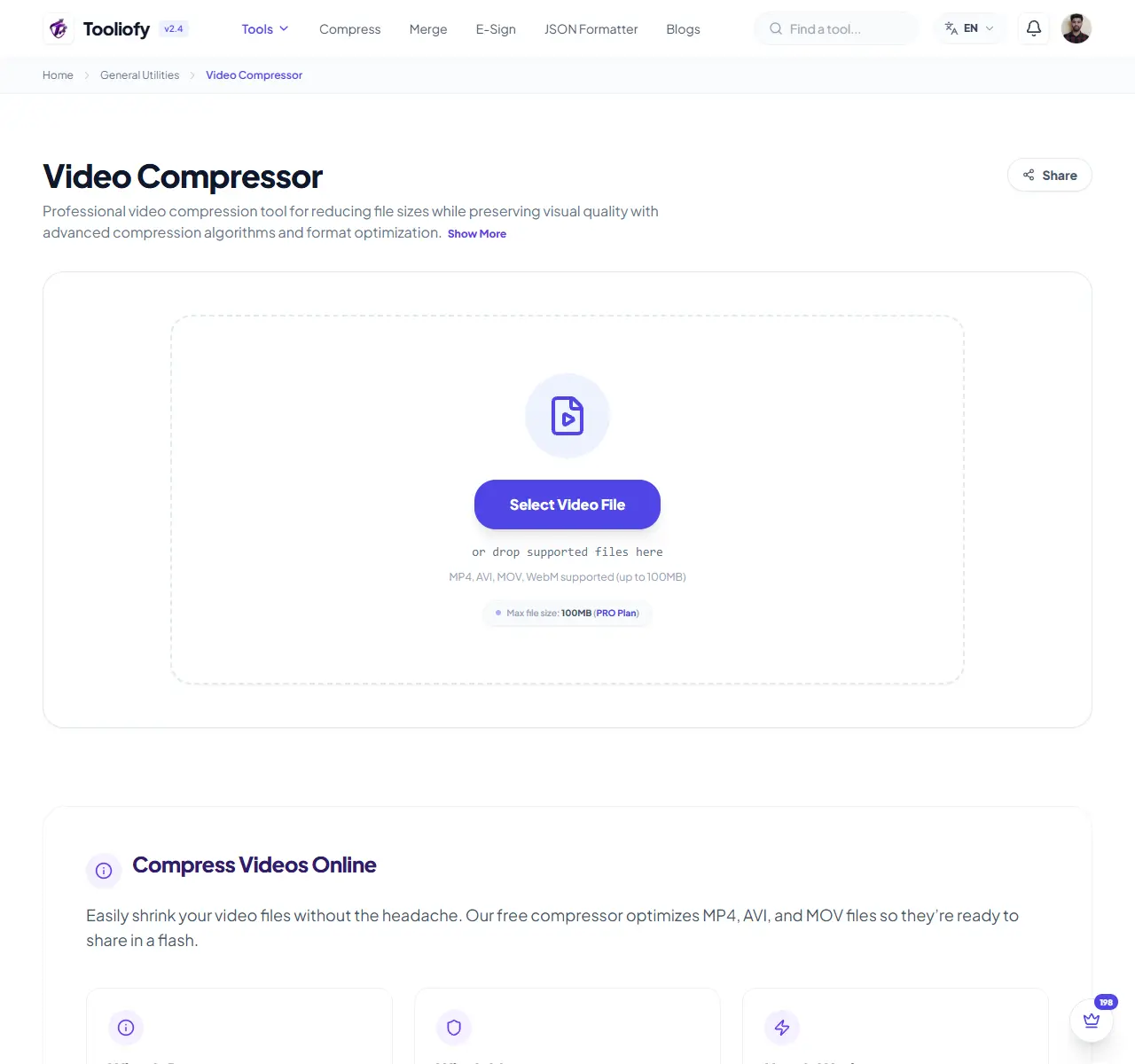
Video Compressor
Video Compressor helps you reduce file size. It keeps the page focused on that one job, so you can check the smaller file without opening a larger app.
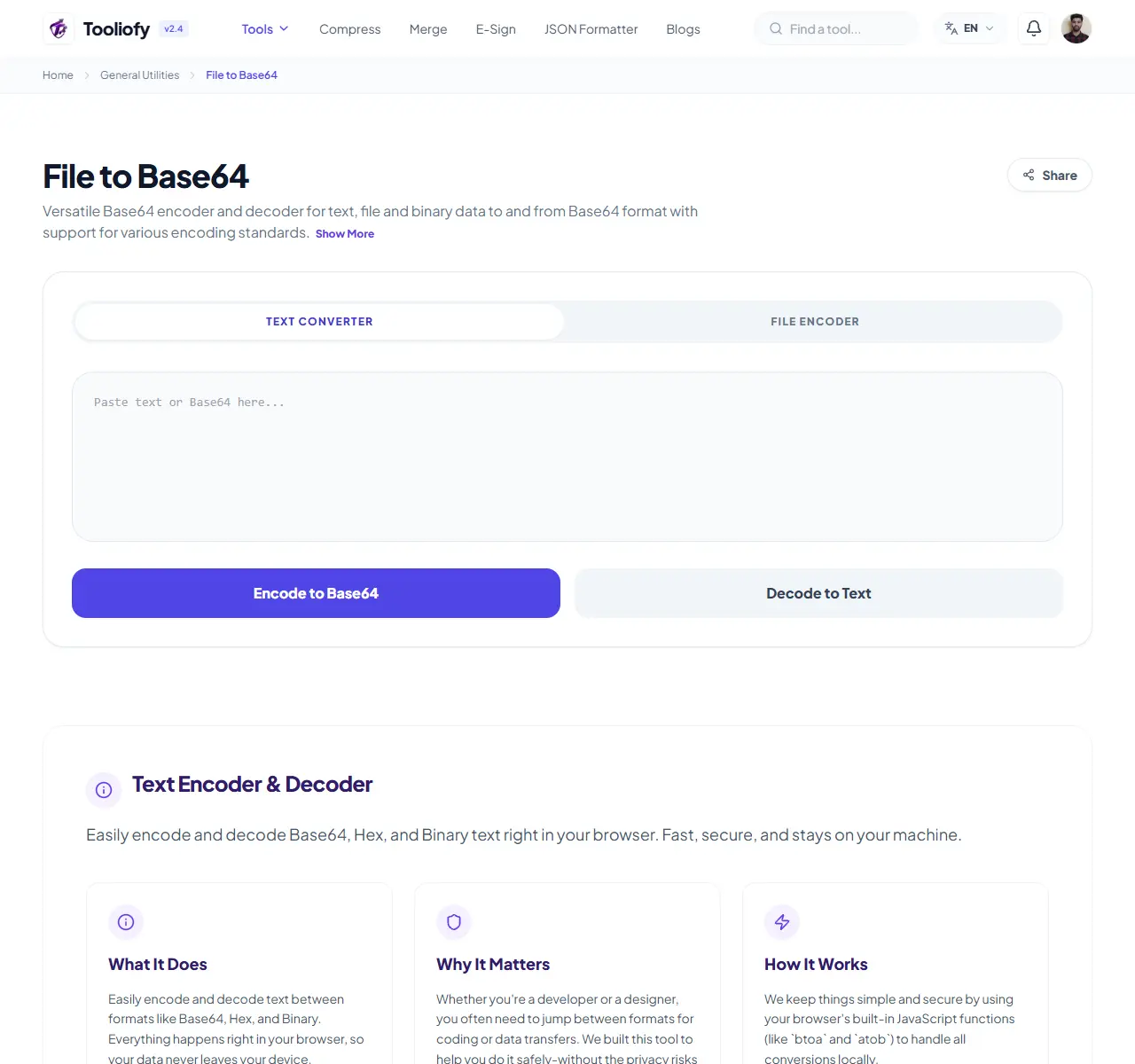
File to Base64
Use File to Base64 when you need to turn File files into Base64. Add the File file, choose the option that matters, and review the Base64 file.
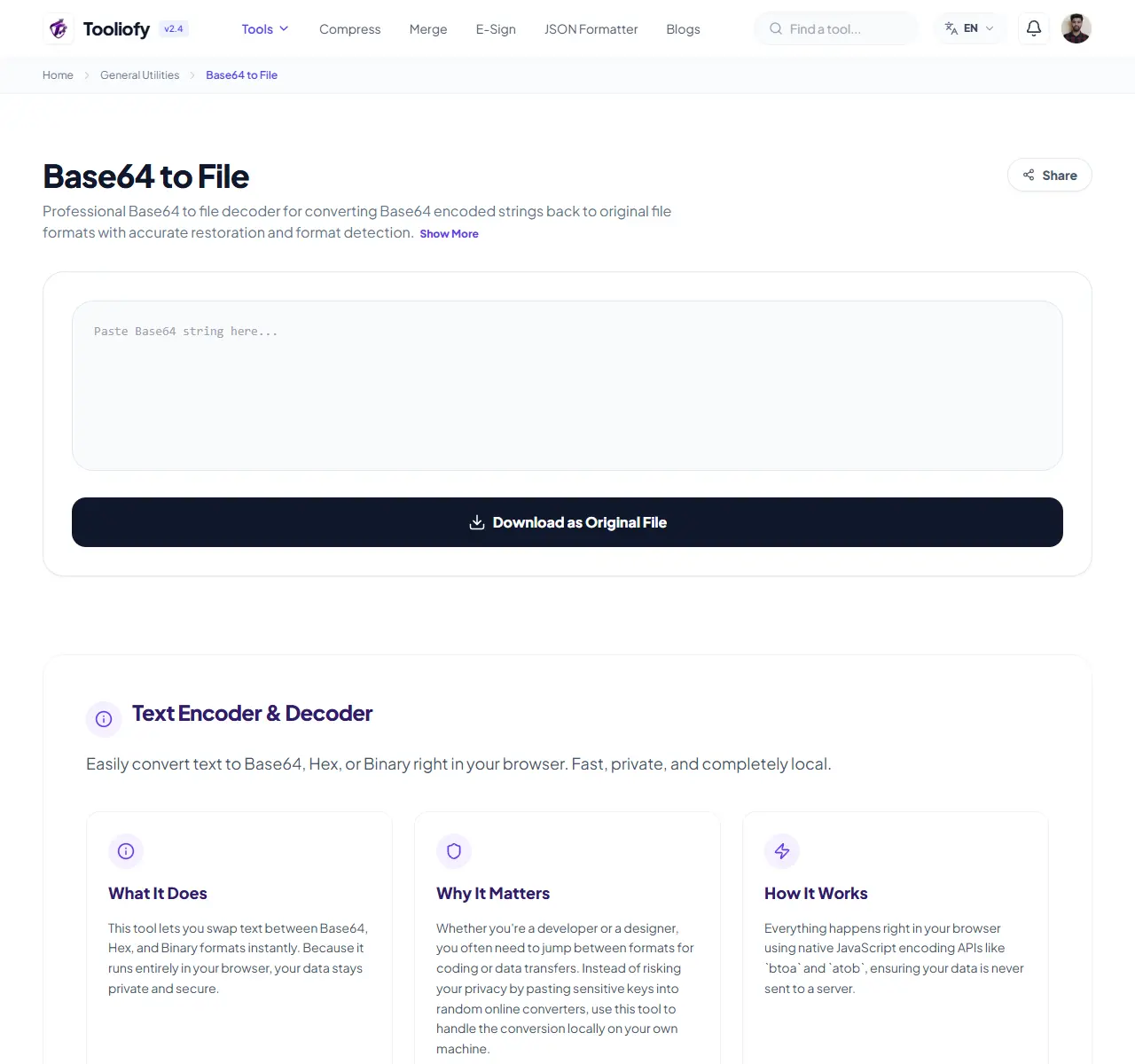
Base64 to File
Use Base64 to File when you need to turn Base64 files into File. Add the Base64 file, choose the option that matters, and review the File file.
General tools are useful when one small file problem blocks the next step. Check the source, choose the output, and keep the original when quality matters.
Explore Other Categories
 19 Tools
PDF & Documents
Explore our pdf & documents and start processing your files securely.
 5 Tools
AI Tools
Explore our ai tools and start processing your files securely.
 58 Tools
Image Tools
Explore our image tools and start processing your files securely.
 24 Tools
Text Utilities
Explore our text utilities and start processing your files securely.